Adding External SDP Sessions
To receive audio from a third-party device, you may need to add (import) an SDP descriptor to Dante Controller.
-
Obtain the SDP Descriptor.
-
Typically, the SDP descriptor is retrievable via the device’s user interface (for example, a web interface).
-
-
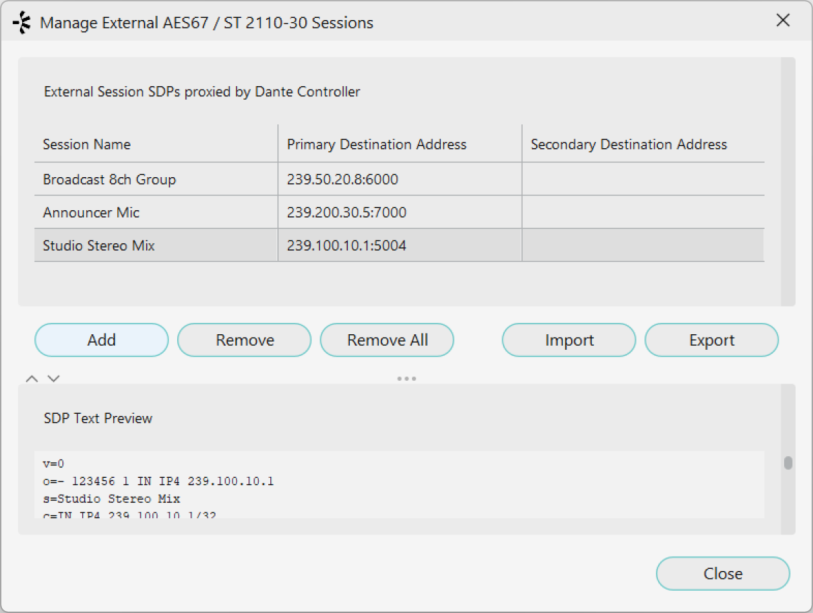
Add the Descriptor to Dante Controller, using the ‘Manage External AES67 / ST 2110-30 SDP Sessions’ dialog (shown above).
You can open the dialog in two ways:
-
Go to the File menu > External SDP Sessions and click Add.
Open the Device View for your Dante device, go to the RTP Config tab and click Add Session.
-
-
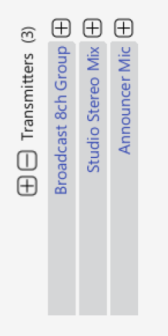
Paste the SDP descriptor into the session management dialog and click Add. The session will appear in the list at the top of the dialog, and in the Transmitters list in the Routing View.
Removing SDP Sessions
To remove an SDP session, select the session in the Manage External Sessions dialog and click Remove. You can also use Remove All to remove all active sessions.
Exporting SDP Sessions
You can export multiple active sessions as an SDP (.sdpa) file for archiving. Note that .sdpa files are not human-readable, but can be imported back into Dante Controller via the Manage External Sessions dialog to restore the sessions.
Viewing SDP Descriptors
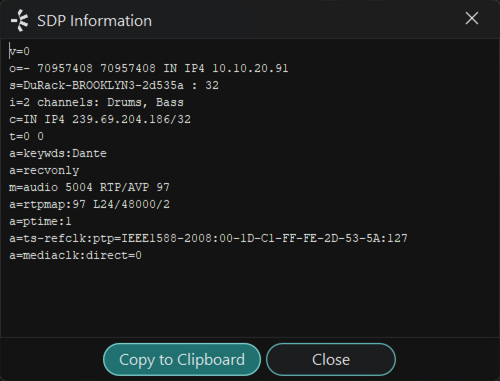
In the Transmit tab, an information icon Info is shown alongside RTP flows. Click the icon to see the SDP information for the flow.