Connecting Sources to Destinations
Connecting Sources to 'Idle' Destinations
Idle destinations are destinations that are not currently receiving any source.
They show no sources in the 'Now Receiving' field:
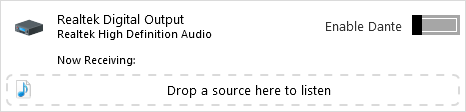
To send a source to an idle destination, simply drag the source onto the destination. This creates a 'subscription'.
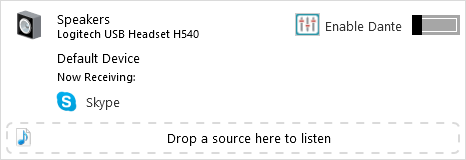
The source will appear in the ‘Now Receiving’ field for the destination.
In the example below, the default device (a USB headset) is receiving audio from ('subscribed to') the Skype application.
Note: Sources can be sent to multiple destinations.
 Related Topics
Connecting Sources to 'Subscribed' Destinations
Subscribed destinations are destinations which are actively receiving one or more sources.
When you drag a source to a subscribed destination, the available subscription options depend on whether the source is stereo (2 channels) or multichannel (more than 2 channels). Consumer-level audio applications and devices are often stereo, and professional audio applications and devices are often multichannel.
Stereo Destinations
When you drag a source to a stereo subscribed destination, you can 'Add Source to Mix', or 'Replace Mix with Source'.
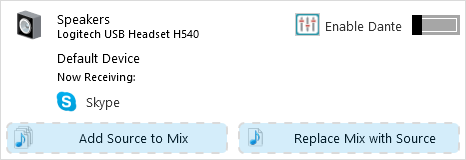
Add Source to Mix
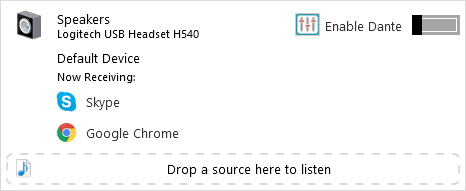
When you 'Add Source to Mix', the source will be added to the source that was already playing, automatically creating a mix.
In the example below, the default device is receiving an audio mix of Skype and Chrome (visually indicated by the vertical arrangement of the sources).
Use the volume mixer to adjust the volumes of the individual sources.
How this subscription appears in Dante Controller
Replace Mix with Source
When you 'Replace Mix with Source', the new source will fully replace whatever was previously playing to that destination.
Multichannel Destinations
When you drag a source to a multichannel subscribed destination, you can 'Append Source to Destination channels', or 'Replace existing subscription'.
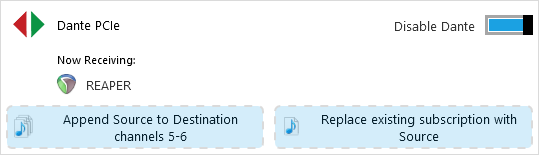
Append Source to Destination Channels
When you 'Append Source to Destination channels [x]', the new source's channels will be appended to the channels that are already playing to that destination. The channel numbers displayed in the 'Append Source...' field are the destination channels that will be subscribed to the new source.
For example, if a PCIe card destination is receiving 8 channels of Reaper, and you drag a 2-channel hardware soundcard to the 'Append Source...' field, channels 1-8 of the PCIe card will remain subscribed to Reaper, and channels 9 and 10 of the PCIe card will be subscribed to the hardware soundcard.
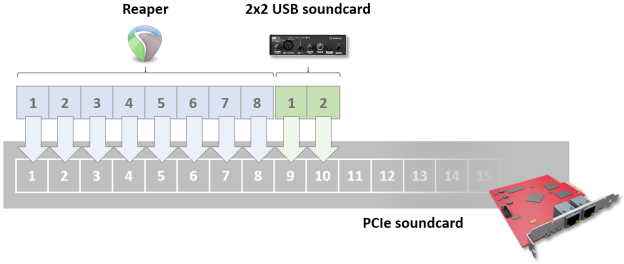
Any further sources subscribed to the destination in this way will be appended after the most recently-added source. If the destination does not have enough free channels to fully accommodate the new source (for example, if the source has eight channels but there are only four destination channels free), as many channels as possible will be subscribed.
For multichannel subscriptions, the sources are displayed horizontally:
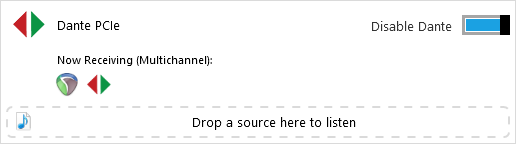
Hover over a source to display the source name.
How this subscription appears in Dante Controller
Note: You cannot remove individual sources from a multichannel subscription using Dante Via - you must remove all sources simultaneously. You can however use Dante Controller to make specific adjustments to channel subscriptions.
Replace Existing Subscription with Source
When you 'Replace existing subscription with Source', the new source will fully replace whatever was previously playing to that destination.
Inactive Sources
If a source is assigned to a destination but is not running (for example, if the application was closed, or the device disconnected) it will appear grayed out, in italic font:
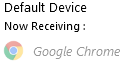
When the source is restarted, it will resume playing audio to the destination.